Showing posts with label Zoom. Show all posts

Wednesday, February 8, 2023

Tips to Help Avoid Zoom Bombing


Contributed by Sam Houston, Learning Technology Administrator

Zoom bombing refers to the unauthorized intrusion into a Zoom virtual meeting by an individual or group with the intent to disrupt the session. This can take many forms, such as using vulgar or offensive language, displaying explicit or disturbing images, and hijacking the screen to share inappropriate content. In some cases, zoom bombers might also use the opportunity to steal sensitive information, such as passwords.

Zoom bombing has become a growing concern as the use of Zoom, and other video conferencing platforms has skyrocketed during the COVID-19 pandemic, particularly for virtual classes and meetings. The ease of accessing Zoom meetings and the lack of security measures have made it easier for attackers to disrupt these sessions. To protect against zoom bombing, it is important to take the necessary steps to secure your Zoom meetings, such as using passwords, waiting rooms, and enabling controls for screen sharing and file transfers.

To access Zoom in a browser window and set up a meeting, first log into https://go.uhcl.edu, then click the Zoom tile. Below are some tips to help prevent Zoom bombing in your meetings – settings can be implemented during the meeting creation process and during the meeting.
  • Use a Waiting Room: This feature allows you to control who can join your meeting and ensures that only authorized participants enter. Note: In UHCL’s Zoom settings, the waiting room is selected by default. To avoid unwanted users joining your meeting, please do not disable the waiting room. Instead, designate someone to join your meeting simply to monitor the waiting room and to let invited participants into the meeting.
  • Enable Passcode: Requiring a passcode to join a meeting adds an extra layer of security. Make sure to share the passcode only with those who need it – Zoom automatically creates a passcode. Note: In UHCL’s Zoom settings, the passcode is selected by default. If you share the invite link, the passcode is in the link, so anyone with the link will be able to join the meeting. Make sure to send the invite link only to those users you want to join your meeting. Alternatively, share the meeting ID and passcode with those users you want to join your meeting. Below is a screenshot of what the Passcode and Waiting Room settings look like when you set up a meeting in Zoom. To prevent unwanted users, please leave both boxes checked when creating a meeting!
  • Meeting ID Automatic Generation: Instead of using your Personal Meeting ID for meetings, allow Zoom to generate an automatic meeting ID. This will prevent users from attempting to join your personal meeting at any time outside of a scheduled meeting.
  • Enable Screen Sharing Controls: You can control who can share their screen during a meeting. In a browser window, log into https://go.uhcl.edu and click the Zoom Tile. Go to Settings > In Meeting (Advanced) > Screen Sharing and select "Host Only" to prevent unauthorized screen sharing. Additionally, the “Share Screen” settings can be edited during a meeting. At the bottom of the Zoom screen, click the up-arrow next to Share Screen > Click Advanced Sharing Options.


  • Disable File Transfer: Zoom allows you to disable the file transfer feature in settings, which can prevent the sharing of inappropriate or malicious files.
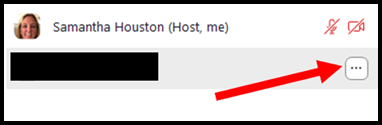
  • Use the Remove a Participant Feature or Report a User Feature: If someone starts to cause problems in your meeting, you can remove them by clicking “Remove” or "Report” from the Participants screen. To remove or report a participant, click the three dots next to their name in the Participants list and click Remove or Report and follow the popup prompts (Please see the screenshots below).
  • Educate Your Participants: Let your participants know the rules of the meeting and what is expected of them! Encourage them to report any disruptive behavior.
By following these tips, you can help ensure that your Zoom meetings are secure and free from disruptive behavior.

If you have any questions about the above information, please feel free to contact the OIT Support Center at either 281-283-2828 or supportcenter@uhcl.edu, and a member of our team will be in touch to assist!

Wednesday, October 19, 2022

Reminders About Available (and Possibly Misunderstood) Instructional Technologies and Capabilities

Contributed by Jenni Willis-Opalenik – Director, Technology Learning Services

Recently, the IDT team assisted the University Technology Advisory Committee (UTAC) in disseminating the university’s LMS Survey. In reviewing survey data, we saw some open-ended comments that suggest a need for more information about a few existing tools and capabilities of which some instructors are unaware.
  • Live video classroom capabilities…to have class online and in person at the same time. Two options are available to faculty from within Blackboard while teaching: (1) Zoom integration with Zoom to set up and conduct Zoom sessions that enable virtual students to “attend” your in-person class, and (2) Echo360’s lecture capture with live streaming.
  • A video assignment (recorded presentations) submission portal that reduces video size automatically. Students can use Echo360 Universal Capture: Personal to create video presentations and save them in their Echo360 Library. They can then submit their video as a hyperlink in a Blackboard assignment drop box, discussion, or another area in a course. Our team has created a short “crash course” video, Student Presentations Using Echo360, for students on all of these Echo360 topics.
  • I would like to see the data on student time spent within the course each day or week. Blackboard provides two options for faculty interested in student activity and performance data within a Blackboard course. For more information, you may want to review Blackboard’s support pages on Course Reports and the Retention Center.
  • Download the Blackboard exam into Microsoft Word. I’m not sure whether this request references downloading a blank copy of an exam to Word for in-person use, or whether the instructor wants to be able to download students’ completed online exams to Word for offline grading. If the request is in reference to the first option, the IDT team’s staff can assist you. Simply email the Support Center to request assistance and your inquiry will be routed to our team. An instructional designer or learning technology administrator will be assigned to use Respondus Exam 4.0 to extract your online exam from Blackboard into a Word exam and answer key. Regarding the second option, we do not have a solution for that request available at this time.
  • A product like Studio for video storage, and the capabilities to create video interactive quizzes. The university acquired Echo360 several years ago, and the IDT team continues to promote awareness of and provide training on that application for the following features: (1) video lecture/presentation recording, (2) storage for audio/video contents created in Echo360 or Zoom, or imported from another source, (3) modification of videos stored in Echo360 to include embedded questions for students to answer as they watch the video, and (4) accessing student viewing and response data. Please refer to the following IDT resources for more information on these features:Promoting Active Engagement with Within-Video Polls/Questions
  • I would like to be able to add comments on written work that students can access without my having to download and save a file that I have to post back…Even better would be the ability to offer spoken comments that are recorded by the system. Blackboard provides some degree support for both of these requests. For more information, you may want to review Blackboard’s support pages on Assignment Inline Grading and Record Audio and Video Feedback.
  • Creating tests in Blackboard is so painful that the thought of having to recreate the tests used in my lab classes is making me nauseous. Most were developed when the university had a license for Respondus 4.0, which greatly facilitated setting up automated tests, but since losing that option, the one or two quizzes I've had to create or modify have been tremendous time holes. UHCL still has Respondus Exam 4.0. However, when we needed to implement single sign-on (SSO) security protocols, making a connection between Respondus Exam 4.0 and Blackboard became problematic and frustrating. However, the IDT team regularly assists faculty with getting exam questions from a Word document into the Blackboard course(s) via Respondus. Simply email the Support Center and request that assistance. Your inquiry will be sent to the IDT team, and one of our Instructional Designers will be assigned to help you. For those faculty of a more “do it yourself” approach, we do have a DIY workaround that enables you to upload questions from a Word document into a Respondus exam, exporting/downloading the test from Respondus as a Blackboard-ready exam file, and importing that file into the Tests, Surveys, and Pools area in your Blackboard course. For more information about the workaround, please review the IDT team’s “crash course” video, Respondus Exam – Manual Workaround [5:49].
In addition to the specific resources referenced above, the IDT team encourages you to contact the Support Center to request more information about these features, or about anything related to instructional design and instructional technologies. You may do so by email at SupportCenter@uhcl.edu or by telephone at (281) 283-2828.

Wednesday, October 5, 2022

Comparing the Zoom Desktop App, Mobile App, and Web Option

Contributed by Jenni Willis-Opalenik, Director - Technology Learning Services

It might surprise some to learn that there are significant differences in tools and functionality of Zoom depending on whether you access it from a desktop app, a mobile app, or just in a browser on the web. For this reason, and especially if you don’t regularly use the Zoom desktop app, you might want to switch to that tool to see if it resolves your Zoom technical issues before calling for support. One of the first items our Tier I support staff will ask you is how you accessed Zoom and if you have tried accessing your meeting from the desktop app. Equally important is ensuring that you regularly update your desktop app (Zoom Desktop Client) to the latest release. You can find the latest Zoom downloads, including the Desktop Client, in Zoom’s Download Center.

You should use the Zoom desktop app when you are hosting or co-hosting meetings. The desktop app has the most features and tools, some of which are important to leading a successful Zoom meeting. As the University of Iowa’s Information Technology Services office notes, “The Zoom desktop and mobile apps are great for scheduling quick meetings, seeing what meetings you have coming up, and allowing you the best experience when joining a meeting. These should be thought of as an extension of the web portal. They can allow you access to some of the web portal settings but are mostly used for joining meetings.”

To review the entire list of differences between the various Zoom access options (and it’s a very long list), visit Zoom’s support page Desktop client, mobile app, web client, and PWA comparison.

Wednesday, September 21, 2022

Zoom Learning Center

Contributed by Samantha (Sam) Houston, Learning Technology Administrator

Did you know that Zoom offers free training through its Learning Center? The Zoom Learning Center provides video tutorials, on-demand courses, and live training covering Zoom Meetings and Webinars. It is available to all Zoom users, regardless of account type or user role!

To access the Zoom Learning Center, ensure you are logged into your Zoom account. Log into https://go.uhcl.edu with your UHCL credentials and click the Zoom tile. Once logged in, click or paste the following link into your browser's address bar: https://learning.zoom.us/pages/27/home

From Zoom Learning Center, you can:

Enroll in an On-demand course!

Not sure what to take or how to get started? Click on the Course Catalog tile to search for and enroll in an on-demand Zoom course of your choice:


Register for a Live Training Session!

Get tips, tricks, and real-time demonstrations from one of Zoom's expert trainers in a live training session. Click the Live Training tile and search for an upcoming live training on a Zoom topic of your choice:


View the Video Tutorials

If you're looking for quick help on a specific skill or feature, explore our vast "Show Me" video collection. Click on the "Show me" Videos tile to view Zooms Video tutorial collection:


If you have any questions about the above information, don't hesitate to contact the Support Center at either 281-283-2828 or supportcenter@uhcl.edu, and a team member will be in touch to assist!

Wednesday, September 14, 2022

Recommendations for Student Submissions of Video Presentations and Other Large Files in Blackboard

Contributed by Jenni Willis-Opalenik, Ph.D., Director - Technology Learning Services

Submissions of video presentation and other large files (especially those exceeding 100MB) in Blackboard can often present challenges for users arising from several external (non-Blackboard) causes, including the user’s ISP, user-side bandwidth issues, and user-side slow internet speeds. This article will present two options for faculty and students that can alleviate such problems.

Large File Submissions Via OneDrive Share Links

Because all UHCL students have access to O365 (including OneDrive) both on and off campus, they can save their large files in their UHCL OneDrive. To submit their large files in Blackboard, students can use the Share feature on their OneDrive file and present their work as a clickable hyperlink. Instructors can click that link in the student’s Blackboard submission to access and download the student’s file from OneDrive. For more information, please refer to our team's support document Submitting Large Files in Blackboard Via OneDrive Links.

Student Video Submissions from Echo360 to Blackboard

Students can use Echo360 Universal Capture: Personal to create video presentations and save them in their Echo360 Library. They can then submit their video as a hyperlink in a Blackboard assignment drop box, discussion, or another area in a course. Our team has created a short “crash course” video, Student Presentations Using Echo360, for students on all of these Echo360 topics.

Faculty who would like to learn more about either or both options should contact the Support Center at SupportCenter@uhcl.edu or via telephone at (281) 283-2828. The Support Center staff will create a help ticket for you that will be assigned to a member of our IDT team, who will then contact you to schedule a consultation.

Editing Time Zone for Zoom in Blackboard

Contributed by Jenn Ray, Learning Technology Administrator

Since we began using the Zoom integration in Blackboard we have received occasional reports that meeting times are showing the wrong time zone. This has been reported by both Students and Faculty alike. Our UHCL Zoom account is set to the Central time zone, but the display on the Blackboard/Zoom integration page doesn’t always sync with the time zone the meetings are created for. Users can change their time zone on the Zoom LTI integration page by following the steps below:

Click the Zoom link in your Course Menu.

On the Zoom LTI page, click the pencil icon next to the current time zone.

Click the arrow for the time zone drop-down in the resulting window and select the US Central time zone (or preferred time zone).

After selecting the correct time zone, click Update.

Meetings should now display with the correct time on the Zoom LTI integration page. NOTE: This change doesn’t seem to transfer between devices/browsers. If you use multiple browsers, you will need to make the change in each browser.


Monday, May 16, 2022

NEW! Zoom Quizzes

Contributed by Jenni Willis-Opalenik, Ph.D., Director - OIT Technology Learning Services

Thanks to one of the eagle-eyed faculty members who contact our team, we've recently learned that Zoom has expanded upon the capabilities of their Polling tool to create a new Quizzes tool for instructors who teach synchronously in Zoom. Look for the IDT team to announce training sessions on Zoom Quizzes this summer. In the meantime, while our team dives into this exciting new feature, we do have a couple of resources to share with those who are eager to learn more about Zoom Quizzes:
You are welcome to request a consultation with a member of our Instructional Design and Technology (IDT) team to learn more about Zoom Quizzes or any other instructional design/technology topic. To request personalized assistance, don't hesitate to contact OIT's Support Center at 281-283-2828 or supportcenter@uhcl.edu.

Monday, April 25, 2022

NEW! Zoom Whiteboard Is Now Available

Contributed by Jenni Willis-Opalenik, Ph.D., Director - OIT Technology Learning Services

Per Zoom's April 19, 2022, blog post, Zoom has "completely rebuilt our whiteboard experience to bring you the all-new Zoom Whiteboard, a cross-platform, persistent, online, visual collaboration solution that’s built right into the Zoom desktop client, Zoom Meetings, and Zoom Rooms for Touch devices. Take your collaboration to the next level with features like; shapes, connectors, sticky notes, adding images, and more."

The IDT team has activated the new whiteboard tool and it should now be available to all users in UHCL's Zoom system. We recommend the following resources to anyone who is ready to learn more about the Zoom Whiteboard feature:
You are welcome to request a consultation with a member of our Instructional Design and Technology (IDT) team to learn more about Zoom Whiteboard or any other instructional design/technology topic. To request personalized assistance, don't hesitate to contact OIT's Support Center at 281-283-2828 or supportcenter@uhcl.edu.

Monday, April 11, 2022

Tips for Teaching with Zoom from the University of Virginia

Contributed by Jenn Ray, Learning Technology Administrator I

While the University of Virginia (UVA) does not use the exact Learning Management System that we do, we can learn much from a look at the recommendations about online teaching that they've shared with UVA faculty. One resource from UVA's help site for their LMS is an excellent article with tips for teaching online with Zoom. We realize that many of our faculty have been using Zoom for a while. However, there may be some information in this article that even an experienced user would find helpful!

You can view the article at https://uvacollab.screenstepslive.com/m/integrations/l/1214518-tips-for-teaching-online-in-zoom, but below are some of the critical points from UVA:
 
  • Install the Zoom client on your device. This suggestion is something we also recommend for Zoom users at UHCL. While it is possible to use Zoom in a browser, it works much better and is easier to navigate within the client app. You should already have the client installed on your UHCL computers, but if not, you can email the Support Center to request that Tech Services install it on your device. For personal devices, log in to go.uhcl.edu and then click on the Zoom card. Under "Resources" near the top of the page, you should see the Download Center, where you can download the client.
  • Join a practice session. If you're not familiar with Zoom, it is always a good idea to create a meeting and practice using the controls, check your microphone/camera set up, and check your surroundings that will be on camera before it's time to hold your class. Doing so will ensure a smooth start to your class meeting.
  • Record your meeting. You can set your meeting to record automatically upon scheduling. If you do this or start recording while you're in a meeting via the Meeting Controls, be sure to select the option to record to the cloud. This will make it easier to locate the recording once it has been processed. An additional note: At UHCL, we also have Echo360 integrated with Zoom. If you intend on doing a lot of recording in Zoom, or if you know that you will want to keep a Zoom recording long term, be sure to activate your Echo360 account before you record in Zoom. When you save your Zoom recordings to the cloud, it will also save a copy of that video to your Echo360 library. Zoom's cloud storage space is finite, and OIT deletes Zoom recordings at regular intervals (recordings from the current semester will not be deleted during that semester). On the other hand, Echo360's cloud space does not have the same limitations, and you will be able to keep recordings there long-term. If you need assistance activating your Echo360 account, don't hesitate to contact the Support Center, and a member of our team will be assigned to assist.
The UVA article also lists some tips with Zoom's help videos attached, which can be a great resource to have on hand if you want to access something quickly. If you have any questions, don't hesitate to contact the Support Center at SupportCenter@uhcl.edu or 281.283.2828.

Monday, February 14, 2022

2020 Zoom-to-Echo360 Video Migrations In Progress

UPDATE! Thank you to the many UHCL faculty and staff who have already responded to our team's email regarding ongoing Zoom recording deletions! Our team emailed 186 faculty and staff members who own the nearly 4300 Zoom video recordings from the 2020 calendar year to determine whether they wanted us to delete those old recordings, or whether they preferred our assistance in migrating the videos from Zoom into Echo360. If you received an email from our team about 2020 Zoom recordings, please do take a few moments to review and respond to that inquiry.

Beginning in 2021, we integrated our Zoom and Echo360 environments. As a result, if you have activated your Echo360 account and you elect to have your Zoom recordings "save to the cloud," they will be saved both temporarily in Zoom and in your Echo360 Library for long-term storage and deployment. Our team will then periodically identify Zoom cloud recordings that also exist in Echo360 and remove those from Zoom storage. Faculty and staff are advised to consider Zoom cloud storage as a temporary holding space for video recordings, with Echo360 as the tool for long-term storage, retrieval, and sharing.

For more information about the transfer process for 2020 Zoom cloud recordings, or to learn more about the Echo360 video storage environment, please contact the Support Center to have your inquiry sent to a member of our Instructional Design and Technology (IDT) team.

Monday, January 24, 2022

Upcoming 2020 Zoom-to-Echo360 Video Migrations

As more faculty embrace the use of Zoom to record and deploy lecture recordings, video tutorials, and virtual class meetings, UHCL's available Zoom cloud storage is nearing capacity. To avoid incurring substantial costs associated with more storage, the IDT team is beginning an effort to reduce Zoom cloud storage by helping 186 faculty and staff members cull and/or migrate the nearly 4300 Zoom video recordings from the 2020 calendar year into Echo360 for long-term storage. We expect to send initial email inquiries to faculty/staff with 2020 videos stored in the Zoom cloud early next week, and we would greatly appreciate everyone's cooperation in this effort so that we can make temporary storage space available for SP22 recordings.

Beginning in 2021, we integrated our Zoom and Echo360 environments. As a result, if you have activated your Echo360 account and you elect to have your Zoom recordings "save to the cloud," they will be saved both temporarily in Zoom and in your Echo360 Library for long-term storage and deployment. Our team will then periodically identify Zoom cloud recordings that also exist in Echo360 and remove those from Zoom storage. Faculty and staff are advised to consider Zoom cloud storage as a temporary holding space for video recordings, with Echo360 as the tool for long-term storage, retrieval, and sharing.

For more information about the transfer process for 2020 Zoom cloud recordings, or to learn more about the Echo360 video storage environment, please contact the Support Center to have your inquiry sent to a member of our Instructional Design and Technology (IDT) team.

Wednesday, January 19, 2022

New Zoom and Echo360 Resources

About Zoom’s New Focus Mode

As described in a recent Zoom support blog post, Many educators shared that they had trouble getting students to turn their cameras on during remote classes, which made it difficult for them to gauge classroom engagement. Focus Mode was developed based on educator feedback to allow instructors to see all students’ videos, while only allowing students to see their teacher. Not only does this promote educational equity by helping all students feel comfortable, it also reduces visual distractions from classmates.

You can even schedule meetings to start in Focus Mode, which can offer an ideal environment for proctoring exams or other situations where you want to eliminate distractions.

If you don’t see the option for Focus Mode (by clicking the “More” icon on the meeting toolbar), you may need to enable this feature in your account settings.

New! Echo360 Support Site for Faculty

The IDT team’s partners at Echo360 have recently launched a wonderful new support site for instructor Echo360 users. Although the site is called Getting Started with Echo360, the site offers great information, even for our experienced Echo360 users. As described on the landing page of the site, Getting Started with Echo360 is designed “to provide Instructors a walk-through of the more commonly used features of Echo360. The pages contain click-through infographics, videos, links to online documentation, and Quick Reference Card links, available for viewing and download as PDFs.” To learn more about this new support resource, feel free to watch the IDT team’s latest short video, Crash Course – Getting Started with Echo360 [2:59].

Friday, December 3, 2021

Zoom Feature Spotlight: Live Transcript

Contributed by Jenn Ray, Learning Technology Administrator I

Recently, Zoom implemented a feature that allows live auto-captioning during a meeting when using the mobile app or desktop client. Although the real-time transcription feature has some limitations, it is still an excellent tool to make your Zoom sessions more accessible. Before we outline how to use the Live Transcript feature in your Zoom meeting, let’s go over some of those limitations:
  • The only language currently supported is English.
  • While the accuracy in our testing was surprising, it is dependent upon several variables such as:
    • The volume and clarity of the speaker,
    • The amount of background noise,
    • Regional/community lexicons and dialects
    • The speaker’s proficiency with English
Because of these limitations, the Live Transcript feature may not be adequate support for any speech-to-text requirements you might have, however in our experience, it can be a helpful tool where more accurate captions aren’t required.

To turn on Live Transcript in a Zoom meeting, click the “Live Transcript” button in your meeting controls at the bottom of the Zoom client.


On the resulting pop-up, click Enable Auto-Transcription. You can also check or uncheck the option at the very bottom to allow your participants to request Live Transcription.


Once you’ve clicked the button above, you’ll notice a message near the bottom of your Zoom screen letting you know the feature is activated. At that time, you can start speaking, and the live transcription will appear near the bottom of your Zoom screen.


Note: Currently, UHCL does not have an external auto-captioning service integrated with Zoom; however, if the Live Transcript feature isn’t appropriate for your needs, you can also assign a participant to type captions while you speak from the same “Live Transcript” pop-up menu.

For more information about this feature and Zoom’s manual captioning ability, please see the Zoom Help Center page linked below:

https://support.zoom.us/hc/en-us/articles/207279736-Managing-closed-captioning-and-live-transcription

As always, please don’t hesitate to reach out to the Support Center (SupportCenter@uhcl.edu) with any questions you may have for us!

Thursday, December 2, 2021

"Crash Course" Video Library

In late 2021, the IDT began developing and posting a series of new, short video tutorials on various topics and tools. We will continue to update this page with new video links as we create new tutorials.
Last Updated: January 18, 2023

Blackboard and Blackboard Tools
Zoom
Echo360
Rally/PTZ Cameras

Transcripts and Captioning for Your Instructional Videos

Our team has worked with representatives from both Zoom and Echo360 to enable features within those applications that will provide automatic transcript creation for new recordings in both systems and for new uploads in Echo360. In addition, Echo360 now includes the capability for faculty to click a single button to have the transcript also available as closed captions.

More information about these features is provided in two of our team's "Crash Course" videos:
Faculty may also be interested in the Zoom support page, Audio transcription for cloud recordings, and Echo360's support site, Editing a Transcript Using the Transcript Editor. As a reminder, including transcripts and closed captions benefits a wide range of learners, including those who do and do not self-report having one or more disabilities. For an interesting look at the benefits of closed captions for all learners, we recommend Dello Stritto and Linder's (2017) EDUCAUSE article, A rising tide: How closed captions can benefit all students.

Zoom Marketplace App Requests/Properly Ending Zoom Meetings

Zoom Marketplace Apps: Like any new components that are added to the university's systems, requests from faculty, staff, and students to enable any of the many Zoom Marketplace tools and integrations to UHCL's Zoom installation require careful review and consideration before our team will be authorized to activate the added component. These reviews, designed to protect the university and faculty, staff, and student users, include the following: 
  • IDT Team: receives the request, obtains the requestor's rationale/purpose/business case, and determines whether UHCL applications already exist that meet the requestor's need; 
  • UH System Information Security Office (ISO): reviews the application for signs of any potential threats to user, institutional, or system data security; and 
  • Procurement: UHCL and the UH System have established terms and conditions, as well as a privacy policy, that apply to all levels of licensing including free versions and applications. Since no employee can agree on behalf of the university to the terms of a contract, any of the typical end-user "check here to accept this agreement" requests must be vetted by Procurement to ensure compliance with all campus and system requirements.
Please End Zoom Sessions, Rather Than Simply Closing the Window/Tab: The IDT team has begun receiving frequent emails from Zoom about Zoom meetings/sessions that have been running for more than eight (8) hours. If you have a specific reason for needing to keep a session open/live for that long, please contact us to discuss caveats of doing so, as well as other options that may suit your needs. Otherwise, when we receive these notices, we will end the session to avoid overtaxing the system for other users. Automatic Transcripts for Zoom Recordings: As announced in last week's newsletter, our Zoom system now includes the ability to have transcripts automatically generated for Zoom session recordings. Please refer to the following resources for more information: 

Sunday, August 15, 2021

FA22 Faculty Welcome and IT-Related Updates

Welcome, or welcome back, to another exciting academic year at the University of Houston - Clear Lake. On behalf of the Instructional Design and Technology (IDT) team and our OIT colleagues in the Support Center, Tech Services, Academic Computing, and Academic Labs, we are posting this information to provide all faculty and staff critical IT-related information and updates to keep in mind as you make technology preparations to support your teaching in the new semester.

Support Center/Computer Lab Locations and Hours

The Support Center's walk-up support is available at our Bayou 1312 (Mini Support Center) location. Although currently open Monday-Friday, 8:00 AM-5:30PM, beginning Monday, August 22, 2022, the Support Center hours will be as follows:

Monday-Thursday: 8:00 AM-7:30 PM
Friday: 8:00 AM-5:30 PM
Saturday: 10:00 AM-3:00 PM
Sunday: Closed

Faculty, staff, and students can also submit questions and technical issues to the Support Center by telephone (281.283.2828) and via email (SupportCenter@uhcl.edu). 

Faculty experiencing technical issues during an on-campus class can still call the Support Center and, when prompted, press the button/number for classroom tech issues. Those calls will be routed to one of the Open Computer Labs, and a staff member from Academic Computing and Academic Labs will assist you. SSCB 2201 Open Lab hours for the FA22 semester are as follows:

Monday-Thursday: 7:30 AM-10:30 PM
Friday-Saturday: 8:00 AM-5:00 PM
Sunday: Closed

Please visit the Open Labs webpage for information about other Computer Lab locations and operating hours.

Important Document/Blog Post Links

As always, if you have any questions about these resources or about instructional technology at UHCL, please contact OIT's Support Center. Your inquiry will be entered into the help ticketing system and an OIT staff member will be assigned to assist you.

OIT Support Center
Location: B1312
Email: SupportCenter@uhcl.edu
Phone: 2810283-2828

Zoom Recording Planned Deletions

As we have explained in previous semesters, the university's license for Zoom does not include unlimited cloud storage for recorded meetings. As we begin the FA21 term, UHCL has used 82% of our licensed cloud storage and we expect to see a rapid increase in recorded meetings early in the new semester. Please be aware of the following tips and reminders for recording Zoom recordings and long-term storage:

  • If you plan to save recorded Zoom meetings beyond the semester in which you record them, please make sure to activate your UHCL Echo360 account and set your Zoom meetings to record to the cloud. If both these conditions are met, your Zoom recordings will be saved in the Zoom cloud (temporarily) and your Echo360 library (long-term storage).
  • Beginning in FA21, the IDT team began regularly notifying faculty with recorded Zoom meetings in both locations that we intend to delete recorded sessions from the Zoom cloud since they will remain in Echo360 storage indefinitely.
  • Faculty who have not activated their UHCL Echo360 account and who own recorded Zoom meetings saved in the Zoom cloud should take steps to move those from Zoom to a long-term storage solution. Our IDT team can provide instructions and training on downloading MP4 video files from Zoom to your computer, activating your Echo360 account, uploading the videos to your Echo360 library, and then deleting the recordings from Zoom. Other options are available, including downloading from Zoom and uploading to YouTube or simply downloading recordings and saving them on your own external drive. However, OIT can only provide full support for Zoom cloud-to-Echo360 video migrations.

Monday, April 12, 2021

End-of-Service for Blackboard Collaborate

UHCL currently licenses and supports several web conferencing systems for instructional and campus operation use, including Zoom, Blackboard Collaborate, and Teams meetings. To reduce costs and streamline user support for web conferencing, OIT discontinued supporting Blackboard Collaborate in February 2022. All existing Collaborate recordings were migrated to Echo360 and are available to content owners in that application. 

Previous Collaborate users are encouraged to familiarize themselves with Zoom for their web conferencing needs. As a reminder, Zoom sessions may now be integrated within Blackboard. We recommend that new Zoom users take advantage of the Zoom Daily Live Webinars described below.

Zoom Daily Live Webinars

Zoom trainers host free and interactive live-training webinars daily. Get up to speed in less than an hour. Please select the time zone that fits best for you when registering for one of the live training webinars.

Tuesday, October 6, 2020

Improve Zoom Security with Authenticated User Setting

For those faculty with concerns about security in their Zoom sessions with students, the Zoom meeting option, "Only authenticated users can join," may be of interest.  If you select this option in your meeting settings, your Zoom session participants will have to log in with their UHCL email address and password to be permitted into the meeting. This takes care of those situations in which "Guest1234" appears in your participant list and you have no idea who that is. As with any new setting change, we recommend that you "test drive" this feature in a short session with several students before an actual whole class meeting. The following information has been excerpted from the Zoom support page, Authentication Profiles for meetings and webinars, which also contains a lot of detailed information for the Zoom system administrators.

Overview

Authentication profiles allow hosts to restrict meeting participants and webinar attendees to logged-in users only and even further restrict it to Zoom users whose email address uses a certain domain. This can be useful if you want to restrict your participant list to verified users, or users from a certain organization.

Authentication profiles do not apply to invited webinar panelists, who will have a unique join link and can be from outside of the specified domain(s).

Note: If a participant does not have a Zoom account, they will not be able to join the meeting or webinar if this setting is enabled.

If a participant tries to join the meeting or webinar and is not logged into Zoom, or logging in with the wrong specified email domain, they will receive one of the following messages:

  • If they are not logged into Zoom:

  • If they are logged in with the wrong email domain:

Only allow authenticated users to join a meeting or webinar

  1. Sign in to the Zoom web portal.
  2. Schedule a meeting or webinar.
  3. Under Meeting Options or Webinar Options, click Only authenticated users can join.


If there are multiple Authentication Profiles configured, you can choose the authentication profile from the dropdown. Selecting the UHCL Domain option will force students to log into the Zoom meeting with their UHCL email address and credentials.